

Request a calling number
Dial Dragon assigns the number your calls and texts come from. You register the business, then keep setting up while it is prepared.
Every workspace calls and texts from a local number you choose while registering. Search by area code, or leave it blank and pick from the available numbers. You cannot port a number you already own, and the list is local numbers, not a toll-free line.
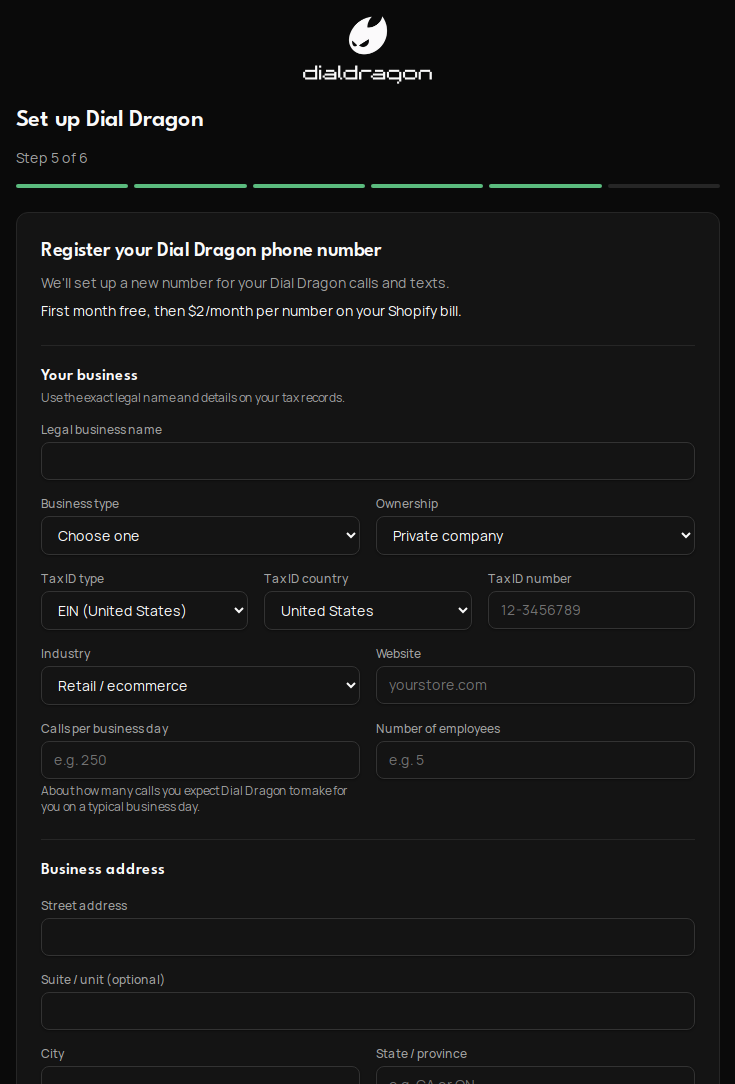
During setup
The phone step is titled Register your Dial Dragon phone number. The first month of the number is free. After that, each number is $2 a month. Use the exact legal name and details on your tax records. The caller name customers see can be shorter. The legal name cannot.
- 1Your business. Legal business name, business type, and ownership. Add the stock exchange and ticker only if the company is public. Then tax ID type, tax ID country, tax ID number, industry, and website. Calls per business day is a plain estimate, not a cap. Number of employees is the real headcount.
- 2Business address. Street, city, state or province, postal code, and country. A suite is optional. This is the business address, not a home address you would rather not list, unless that is the address on the filing.
- 3Authorized contact. First and last name, job title, role, email, and phone for a person at the business. That person is who gets asked if a detail does not match.
- 4Your number. Name shown on calls: 15 characters or fewer, starting with a letter, using letters, numbers, periods, commas, and spaces. The preview on the page is what phones will show. Search by area code is optional. Choose one number from Available numbers. Register my number cannot finish until you pick one.
- 5Texts after calls. The page fills in what the texts are about, how customers agree, your privacy and terms pages, and two sample texts. Read them. Edit anything that is not how your store actually works. The opt-in description uses the checkout label you confirm under Account → Compliance.
- 6Press Register my number. The screen switches to Details submitted, and it shows the name customers will see. Dial Dragon emails you as each approval step finishes.
- 7Check the box that you are responsible for lawful outreach and consent, then Continue. You can keep building the store profile, a flow, or a campaign while the number is in review.
If the account page is still empty
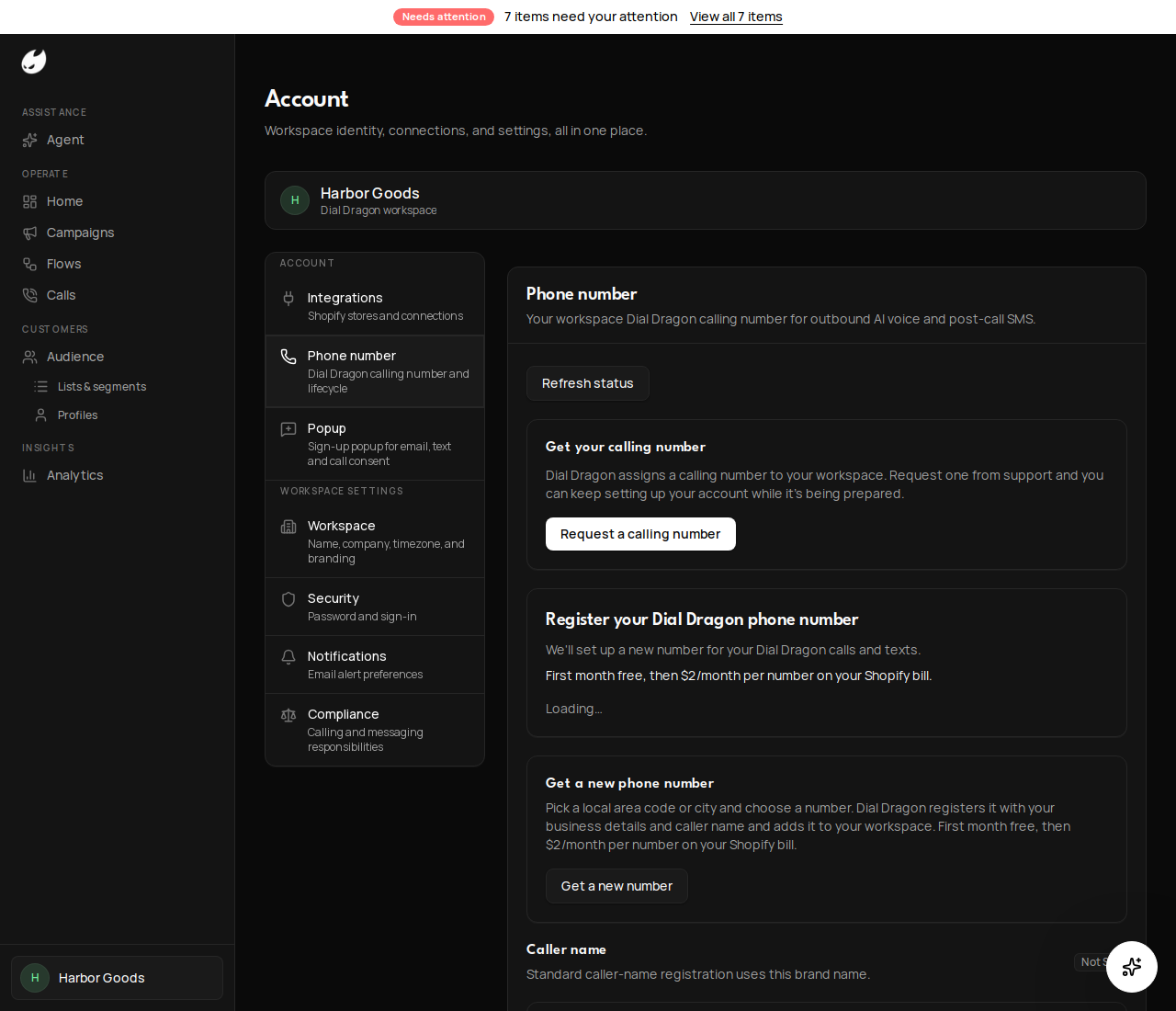
- 1Open Account → Phone number.
- 2If no number is assigned, you will see Get your calling number.
- 3Choose Request a calling number. That opens an email to support@dialdragon.com with the subject filled in.
- 4Send it. Refresh status on the same page later. The number appears at the top when it is ready.
After you submit
Account → Phone number lists the work still in front of the number. Refresh status when you get an email, or if a step has sat on In review longer than the note on that row.
- Business verification. Our team confirms the business is real. Approval usually takes a few business days.
- Your phone number. A local number for calls and texts. It shows on this page once it is assigned.
- Verified caller. Calls are signed as coming from a verified business. This starts after business verification.
- Spam protection. The number is registered so it is less likely to be labeled spam.
- Caller name. The name people see. After it is approved, it can take up to 72 hours to appear on every phone.
- Texting registration, then texting approval. Texting approval often takes 1 to 3 weeks. Calls can be ready before texts are.
A step marked Needs your attention includes a fix. Use Fix business details or Edit details, change that field, and submit again. Starting over with a second request does not speed the first one up.
A flow or campaign will not turn on without a caller number selected. When the number shows Ready for calls, pick it as the Caller number on page 2 of a flow, or Caller phone number in a campaign. If the page says the caller identity blocks calls, live dials wait until that clears.
If the number never appears, or a step stays on Needs your attention after you have corrected the details, email support@dialdragon.com from the address on the account and include the shop domain.