

Your public opt-in page
Dial Dragon publishes an opt-in page for the store after you confirm the checkout text label. That page is part of getting texts approved.
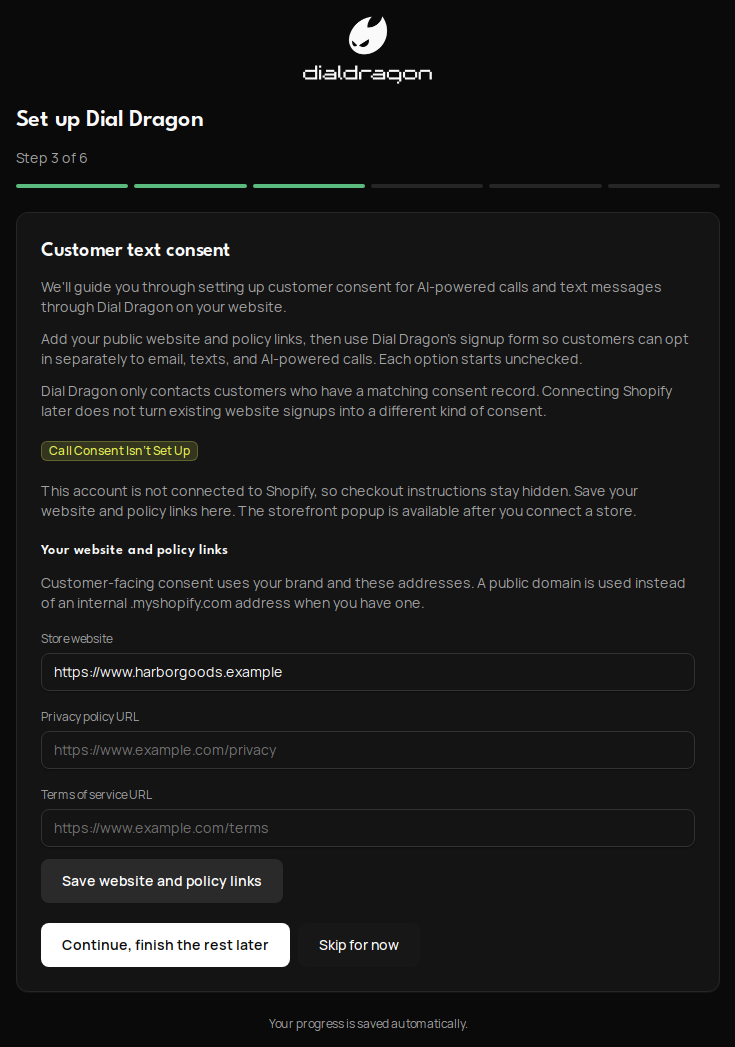
When you finish Customer text consent under Account → Compliance, Dial Dragon builds a public page at dialdragon.com/optin/your-store. It shows how someone agrees to texts from that store. The phone registration uses that page when it describes how customers agree.
- 1Confirm the checkout label, including the shorter version if Shopify cuts the long one off.
- 2Upload the checkout screenshot and check that your terms and privacy pages match the links in the label.
- 3Open the opt-in page it gives you and read it the way a customer would.
- 4If the store name or the policy links are wrong, fix them in Compliance and in the phone form. A stale page is a stale registration.
The page is public on purpose. It is not your customer list. Texting approval often takes 1 to 3 weeks after the registration is submitted, and this page is one of the things that review reads.